
Resize for TikTok
Crop & resize images for social media
Introduction: Stop getting Cut Off on TikTok
You’ve taken the perfect photo. The lighting is crisp, the angle is great, and you’re ready to share it with your TikTok audience. You upload it, and suddenly… disaster.
Important parts of the image are chopped off. Black bars appear above and below your photo. Or worse, your high-quality image looks blurry and pixelated.
Whether you are updating your profile picture, creating a viral photo carousel (Photo Mode), or turning images into a video slideshow, knowing the right dimensions is crucial for looking professional.
In this guide, we will break down every actual image size you need for TikTok and show you how to use our free, instant Resize Image for TikTok tool to fix your photos in seconds.
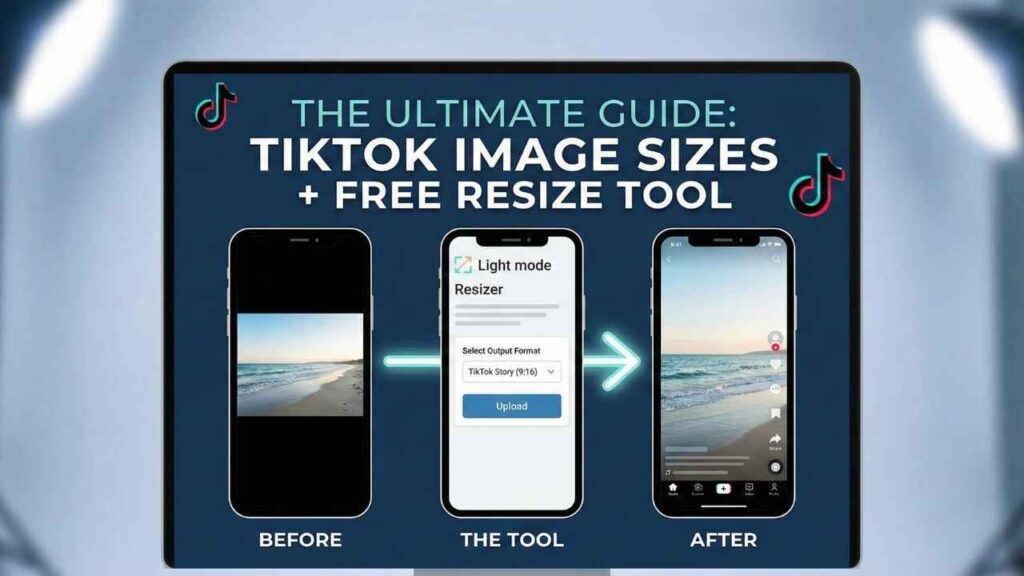
The Ultimate Cheat Sheet: Actual TikTok Image Sizes
While TikTok is primarily a video app, static images are incredibly important for your profile identity and the popular “Photo Mode” feature.
Here are the exact dimensions you need to aim for to ensure maximum quality and the correct fit.
1. TikTok Profile Picture Size
Your profile picture is your digital handshake on TikTok. It appears on your profile, next to every comment you leave, and on the “For You” page. It needs to be sharp.
- The Golden Rule: 1:1 Aspect Ratio (Perfect Square).
- Minimum Size: 20×20 pixels (Do not use this; it will look terrible).
- Recommended Size: 1080 x 1080 pixels.
Crucial Tip: Although you upload a square image, TikTok crops it into a circle. Ensure the focal point (like your face or logo) is perfectly centered so nothing important gets cut off by the circular frame.
2. TikTok Video & Story Dimensions (The Standard)
This is the most important size on the platform. Whether you are uploading a video file or using a static image as the background for a Story, this is the format you must use to fill the entire screen without black borders.
- Aspect Ratio: 9:16 (Vertical / Portrait).
- Recommended Size: 1080 x 1920 pixels.
If you upload a horizontal (landscape) photo here, it will look tiny in the middle of a black screen. You need to resize it to fill the 1080×1920 canvas.
3. TikTok Photo Mode (Slideshows)
TikTok’s “Photo Mode” allows creators to post carousels of high-quality still images set to music, similar to Instagram posts but vertical. These often perform very well algorithmically.
- Aspect Ratio: 9:16 (Vertical / Portrait).
- Recommended Size: 1080 x 1920 pixels.
To make your Photo Mode posts pop, ensure every single image in the carousel has been resized to these exact dimensions before uploading.
4. TikTok In-Feed Ad Images
If you are running paid advertisements, TikTok offers a few more options, though the vertical format remains king for performance.
- Vertical Video Ad: 1080 x 1920 px (9:16) – Highly Recommended.
- Square Image Ad: 1080 x 1080 px (1:1) – Often used in specific ad placements outside the main feed.
Why You Need a “Resize Image for TikTok” Tool
Most photos taken on a smartphone are in a 4:3 aspect ratio. Most professional camera photos are 3:2. Neither of these is the 9:16 vertical tower that TikTok requires.
If you upload a standard photo directly to a TikTok Story or Photo Mode, one of two things happens:
- The Letterbox Effect: TikTok shrinks your photo to fit the width, leaving ugly black bars at the top and bottom.
- The Awkward Crop: You try to zoom the photo in to fill the screen, but you lose half the image content on the sides.
The solution is “Smart Resizing.”
You need a tool that takes your original photo, creates a perfectly sized 1080×1920 canvas, and fits your image into it intelligently (usually by filling the space while maintaining the image’s center focus).
How to Use Our Free TikTok Image Resizer
We have developed a free, fast, and secure online tool located right on this page to handle the math for you. It ensures your images are the exact resolution TikTok demands.
Here is a step-by-step guide on how to use it:
Step 1: Select Your Desired Output Format
At the top of the tool, you will see a dropdown menu. Choose the format you need.
- For Stories, Reels, or Photo Mode, select “TikTok Story / Video (9:16)”.
- For your profile image, select “TikTok Profile Picture (1:1)”.
Step 2: Upload Your Image
Click the upload zone or drag and drop your photo file into the box. The tool accepts standard formats like JPG and PNG.
Step 3: Preview the Thumbnail
Once uploaded, you will see a small thumbnail of your original image and the file name, confirming the tool is ready to process it.
Step 4: Click “Convert Image”
Hit the blue button. The tool will instantly process your image in your browser. It will apply smart cropping logic to ensure your image fills the chosen format perfectly without stretching or distortion.
Step 5: Review and Download
A preview of your final, perfectly sized image will appear. If it looks good, click the “Download Image” button to save the high-definition PNG file to your device. You are now ready to upload it to TikTok!
5 Frequently Asked Questions (FAQs)
1. What is the absolute best size for a TikTok post?
For almost all content on TikTok (videos, stories, photo slideshows), the best size is 1080 x 1920 pixels. This is the 9:16 aspect ratio that fills the entire phone screen.
2. Why does my TikTok profile picture look blurry?
This usually happens because the original image you uploaded was too small (e.g., 100×100 pixels). TikTok stretches it to fit their display, causing blurriness. Always upload a high-resolution image, preferably at least 1080×1080 pixels, even though it appears small on the screen.
3. Can I post landscape (horizontal) photos on TikTok?
You can, but it’s not recommended for standard posts. TikTok will display landscape photos with large black bars above and below them. This looks unprofessional and fails to capture the viewer’s attention in the immersive, full-screen feed. It is much better to resize the image to fill the vertical screen.
4. Will resizing an image lower its quality?
If you use a high-quality tool like the one provided on this page, no. Our tool processes the image in your browser and exports it as a high-quality PNG file, ensuring it remains crisp when uploaded to TikTok.
5. What is the “Safe Zone” for TikTok images?
When creating content (especially 1080×1920 images for stories or photo mode), remember that TikTok places overlays on top of your image. The caption, hashtags, and music info sit at the bottom, and the “Following/For You” tabs sit at the top. Keep important faces, text, or logos out of the very top 15% and bottom 20% of the image to ensure they aren’t covered up by the app interface.
Also Read: JPG to SVG With Color Online Converter Free